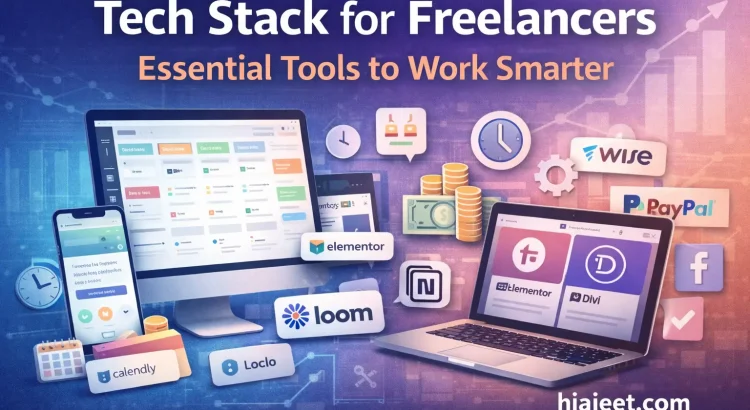
Best tools for freelance web developers

Best tools for freelance web developers – How to Manage Your Career for Scale and Profit

As a freelancer with over 13 years of experience building digital solutions at hiajeet.com, I’ve learned that the difference between a struggling freelancer and a successful consultant isn’t just talent — it’s systems.

Talent gets you started. Systems keep you profitable and sane.

When you’re managing global clients, you can’t afford to lose track of a task or overpay on transaction fees. To build a sustainable career, you need a tech stack that works as hard as you do.

In this guide, I’m breaking down the essential tools I recommend for managing a high-growth freelancing career.

1. Mastering Project Management: Stay Organized, Stay Profitable

When you move from “doing gigs” to “running a business,” your brain is no longer a reliable place to store deadlines. You need a single source of truth.

  • Monday.com: My top pick for visual thinkers. It’s highly customizable and lets you track project phases from discovery to deployment. It’s also excellent for showing clients exactly where their project stands.
  • HubSpot: Known as a CRM, but extremely useful for freelancers managing a sales pipeline. It helps track outreach, follow-ups, and how consulting leads convert.

2. Web Development & Design: Speed Meets Power

Efficiency matters. You want to deliver bespoke-feeling websites without reinventing the wheel every time. Within the WordPress ecosystem, two builders consistently stand out:

  • Elementor: Ideal for rapid prototyping and high-end design flexibility. Perfect for startups that need to launch quickly.
  • Divi: Excellent for cohesive brand layouts and long-term client management. Especially useful for established brands.

Pro Tip: Choose your page builder based on project complexity and the client’s ability to manage the site after launch.

3. Getting Paid: Maximizing Your Take-Home Pay

You work hard for your money. Don’t let unnecessary fees quietly erode your profits.

  • Wise (formerly TransferWise): A game-changer for international clients. It offers real exchange rates and significantly lower fees than traditional banks or PayPal — especially for large milestones.
  • PayPal: Convenient and familiar, but expensive. Best used for smaller or quick transactions rather than primary invoicing.

4. Bonus: Tools Every Freelancer Needs

To truly level up your workflow, I recommend adding these tools:

  • Calendly: Eliminate scheduling back-and-forth. Let clients book calls instantly.
  • Loom: Replace long emails with short screen recordings. It builds clarity and trust fast.
  • Notion: Create a personal knowledge base for code snippets, client notes, and business planning.

Final Thoughts

Tools are the foundation of freedom.

Managing a long-term freelancing career has taught me that when your projects are organized and your payments are optimized, you gain time — and clarity — to focus on solving real problems for clients.

Ready to take your digital presence to the next level? Whether you’re a startup or an established brand, I can help you build scalable solutions that deliver results.

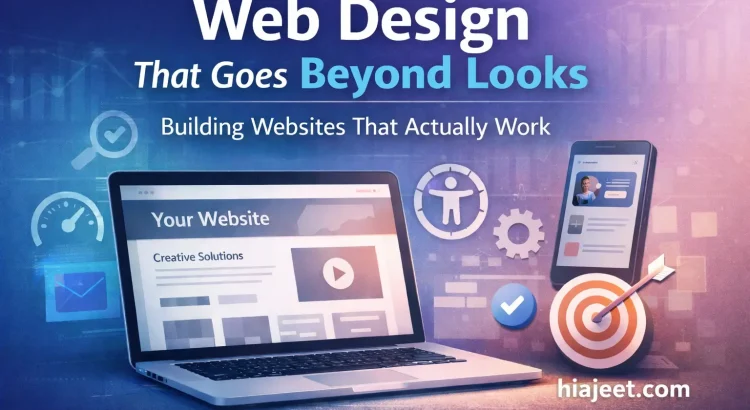
Web Design That Goes Beyond Looks: Building Websites That Actually Work

Web Design That Goes Beyond Looks: Building Websites That Actually Work

Web design is often misunderstood as simply choosing colors, fonts, and layouts. While visuals matter, effective web design is about much more than appearance. A well-designed website guides users, builds trust, and supports real business goals.

Good web design isn’t about decoration — it’s about communication.

In today’s competitive digital landscape, web design must balance aesthetics, usability, performance, and strategy. A beautiful site that loads slowly or confuses users will fail — no matter how good it looks.

What Modern Web Design Really Means

Modern web design focuses on creating experiences, not just pages. Every design decision should help visitors understand your brand, navigate effortlessly, and take action.

Every design choice should answer one question: does this help the user?

  • User Experience (UX): Clear navigation, readable layouts, and intuitive interactions.
  • Responsive Design: A seamless experience across desktops, tablets, and mobile devices.
  • Performance: Fast-loading pages that don’t frustrate users or hurt SEO.
  • Accessibility: Inclusive design that works for all users.

Why Good Web Design Impacts Business Results

Your website is often the first impression of your business. Poor design can make even strong brands look unreliable, while thoughtful design builds credibility instantly.

Users decide whether to trust your website in seconds — design makes that decision for them.

Effective web design helps:

  • Increase conversion rates
  • Reduce bounce rates
  • Improve SEO performance
  • Build long-term brand trust

Web Design for Performance and Scalability

Design choices affect more than visuals. Heavy layouts, unoptimized assets, and poor structure can slow down your site and make future changes difficult.

A fast, scalable website is part of good design — not a technical afterthought.

Scalable web design ensures your website can grow with your business. This means clean layouts, reusable components, and a structure that supports new content, features, and integrations over time.

The Importance of Ongoing Design Aftercare

One of the biggest mistakes businesses make is treating web design as a one-time task. Design needs evolve as user behavior, technology, and business goals change.

Websites don’t fail at launch — they fail when they stop evolving.

Ongoing design aftercare includes:

  • Improving layouts based on real user data
  • Updating designs to match new branding
  • Optimizing pages for better engagement
  • Ensuring consistency as new pages are added

Choosing the Right Web Designer

A good web designer doesn’t just ask how your site should look — they ask what your business needs to achieve. Design should be aligned with strategy, content, and long-term growth.

The right designer thinks in outcomes, not just layouts.

Final Thoughts

Great web design is a balance of creativity, usability, and technical understanding. It’s not about trends or flashy effects — it’s about building websites that feel effortless to use and support real business outcomes.

When web design is done right, users don’t notice the design — they simply enjoy the experience.

Ready to Improve Your Website?

Great web design isn’t just about visuals — it’s about performance, usability, and long-term results. If you’re planning a new website or want to improve an existing one, working with the right expert makes all the difference.

I don’t just design websites — I provide ongoing support and aftercare to ensure your site continues to perform long after launch.

The Most Useful WordPress Shortcodes for Your Business Website

Beyond the Block Editor: The Most Useful WordPress Shortcodes for Your Business Website

Introduction

While the WordPress Block Editor has made building pages easier than ever, there’s still a powerful tool many people overlook: shortcodes. Think of them as a shortcut—a simple piece of text in square brackets that acts as a command, adding a special feature to your page or post without you having to write any complex code.

Understanding a few key shortcodes can save you time and give you more control over your website’s functionality. This post will walk you through the most popular shortcodes, from the ones built into WordPress to the powerful ones that come with the plugins you already use.

Section 1: The Basics – Core WordPress Shortcodes

WordPress includes a handful of shortcodes right out of the box that are incredibly useful, especially for managing media.

  • : This is the most common built-in shortcode. It allows you to quickly create a photo gallery from the images in your media library. You can add attributes like id="1,2,3" to choose specific images or columns="3" to control the layout.

  • : This shortcode lets you wrap a caption around any content, such as an image or a video. While the block editor handles this well, knowing this shortcode can be useful for older posts or for adding custom captions to specific elements.

Section 2: The Real Power – Shortcodes from Plugins

The true magic of shortcodes comes from the plugins you install. Many essential plugins provide shortcodes that let you embed their features anywhere on your site.

  • Contact Forms: Every business website needs a contact form. Plugins like Contact Form 7 or WPForms give you a simple shortcode (e.g., [contact-form-7 id="123"]) that you can paste into any page to instantly display a fully functional form. This makes it easy to add a “Contact Us” form or a lead generation form to multiple pages on your site.
  • E-commerce (WooCommerce): If you run an online store, WooCommerce shortcodes are indispensable. You can use them to display your products on a non-shop page, show a product category, or even embed the shopping cart itself. For example, [products] displays a list of your products, while [woocommerce_cart] shows the shopping cart.
  • Page Builders: Even popular page builders like Elementor or WPBakery use shortcodes behind the scenes. They allow for the complex layouts and widgets you create to be easily rendered on your page.

Section 3: How to Find and Use Shortcodes

Using shortcodes is a simple, three-step process:

  1. Find the shortcode: Most plugins provide a simple button in the classic editor or a specific block in the new Block Editor to insert their shortcodes. Alternatively, you can always find a list of a plugin’s shortcodes in its official documentation.
  2. Add the Shortcode Block: In the WordPress Block Editor, click the plus sign to add a new block, then search for and select the “Shortcode” block.
  3. Paste and Publish: Paste the shortcode you copied (e.g., [contact-form-7 id="123"]) into the block. When you publish the page, WordPress will automatically replace the shortcode with the feature it represents.

Conclusion

Shortcodes are a classic WordPress feature that continues to be a powerful tool for adding professional functionality to your website without a single line of code. By understanding the basics and knowing where to look, you can unlock a new level of control over your site’s content.

Are there any other shortcodes or website features you’re struggling to implement on your business website? Let me know in the comments!